Line Drawing vs Line Art: What Is the Difference?
Line art is any image made purely of distinct lines on a plain background, without gradients, shading, or color fills; a line drawing is an individual image drawn in that style. In technical documentation the terms are used almost interchangeably for the clean black-and-white outline illustrations found in manuals.
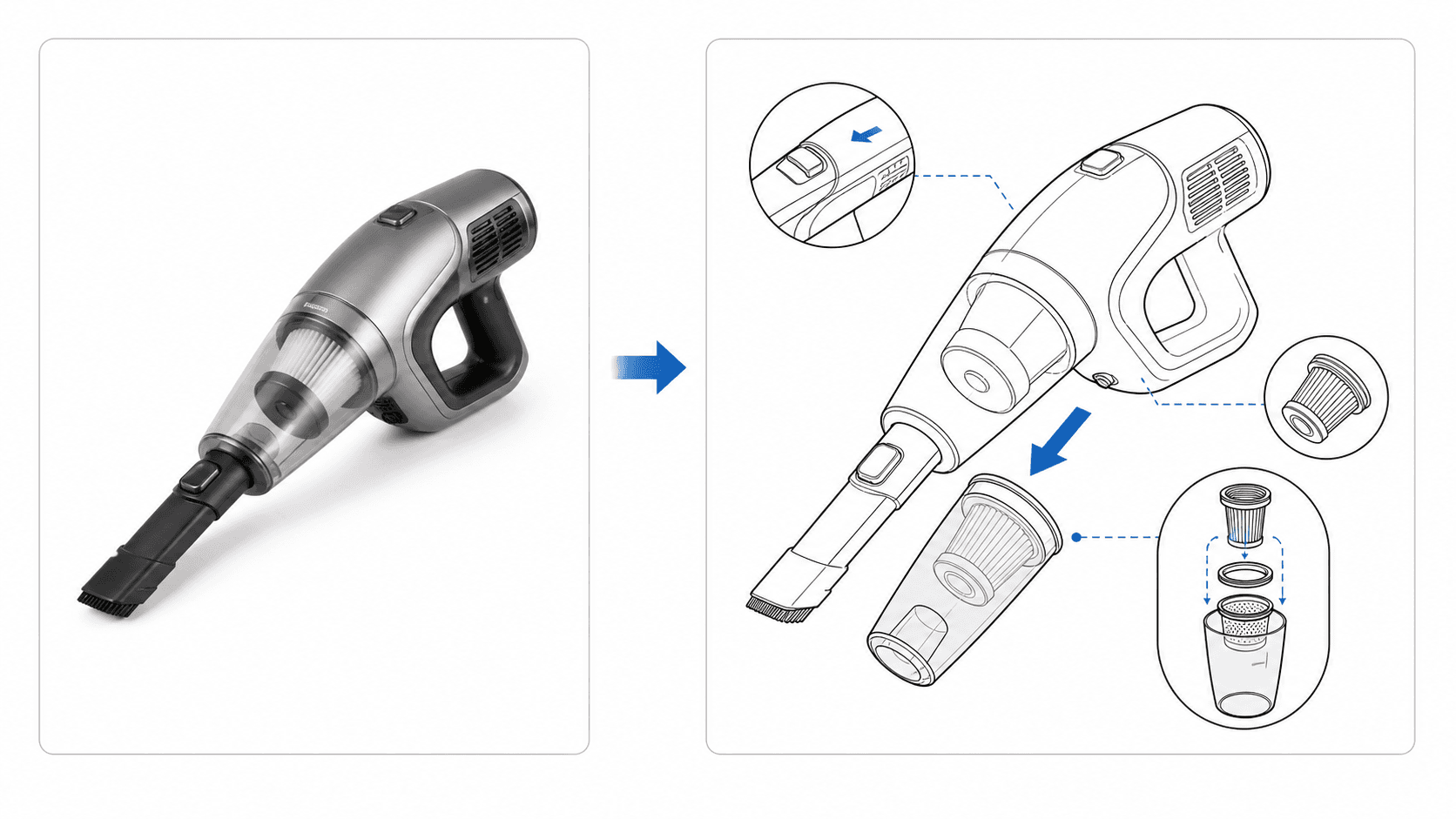
What counts as line art
Line art defines shapes with contour and detail lines only. Depth and material cues come from line weight, hatching, or stippling rather than continuous tone. That constraint is exactly what makes the style reproducible: it prints crisply at any size, photocopies without degrading, and compresses to tiny vector files.
In everyday usage, "line art" names the style or category, while "a line drawing" names a specific image. Technical illustration, comics inking, tattoo linework, and coloring books are all line art traditions; instruction manuals use the technical branch of it.
Why manuals use line drawings instead of photos
Photographs show everything — glare, background clutter, brand-specific colors — while a line drawing shows only what the reader needs. Illustrators can exaggerate the important edge, omit distracting detail, add cutaways, and keep every figure in a document stylistically identical even when source photos were taken years apart.
There are practical wins too: line art stays legible when printed small and in one color, avoids photographing every product variant, and sidesteps lighting and prop inconsistencies across a long document set.
Localization teams get an extra benefit: because line drawings carry no embedded text or culturally specific scene details, the same figure set ships worldwide, and callout labels can live in the page layout where they are easy to translate.
How photos become line drawings
Three production routes dominate. Manual tracing in vector software (Illustrator, Affinity Designer) gives full control but is slow. Automatic edge-detection filters are fast but produce noisy, unusable results on real photos. Modern AI conversion sits between: it interprets the product like an illustrator would — keeping structural edges, dropping noise — and outputs manual-style line drawings from ordinary photos in seconds.
Whichever route a team chooses, the goal is a reusable style: consistent line weights, the same level of simplification, and predictable treatment of hidden edges. Once that style exists, each new product photo becomes a routine conversion rather than a fresh design decision — which is what makes a fifty-figure manual affordable.
Frequently asked questions
Is line art the same as a sketch?
No. A sketch is a rough, exploratory drawing that may include shading and loose construction lines. Line art is a finished style with deliberate, clean lines. Technical line drawings in manuals are precise final artwork, not sketches.
What file format should line drawings be in?
Vector formats (SVG, EPS, PDF) are ideal because they scale to any print size without pixelation and keep file sizes small. High-resolution PNG with a transparent background is an acceptable raster fallback for digital documents.
Can AI convert a photo to a line drawing?
Yes. Unlike simple edge-detection filters, AI models trained on technical illustration can identify the product's structural lines, remove background clutter, and produce a clean manual-style drawing from a single photo.
Convert photos to manual-ready line drawings
ManualFig turns product photos into clean technical line drawings in the consistent style instruction manuals demand.
Try photo to line drawing